
Lunch Guests at MES
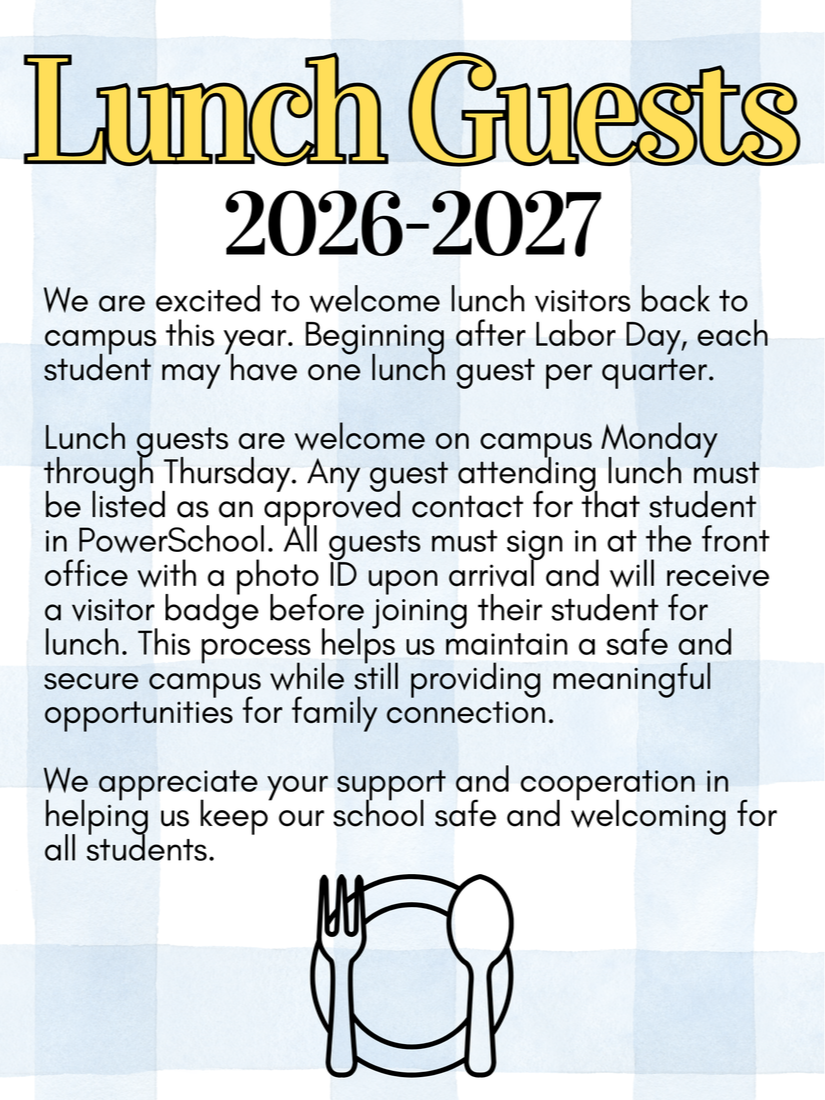
We look forward to welcoming you to eat lunch with your child at MES! In order to maintain a safe and secure campus, please abide by the following expectations:
Considerations for Lunch Guests
All lunch guests must be on your child's white card.
We ask for one lunch guest per child per quarter.
All guests will be required to sign in at the front office and wear a visitor's badge while on campus.
All visitors will eat with their child at a designated area in the lunchroom. Due to space and safety, only your child will be permitted to eat lunch with you. We’re unable to accommodate additional students at the visitor tables.
No outside food will be permitted during your visit.
Class Lunch Schedule 26-27
Access the lunch schedule for your student's class here.
School Cafe'
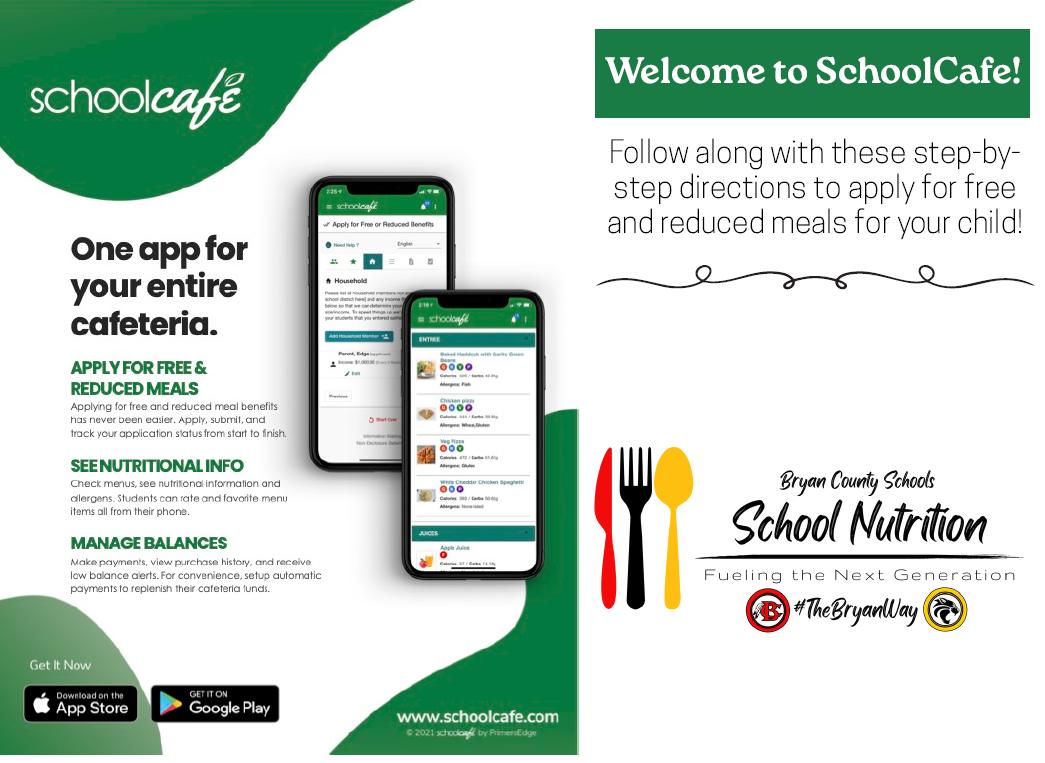
Bryan County Schools School Nutrition program is launching a new point of sale system to enhance customer experience and assist with lower convenience fees. SchoolCafé is a one-stop shop for all your school nutrition needs; manage account balances, set up alerts, view menus and nutrition information and apply for meal benefits, all in one place.
Get started today! Follow this link for step-by-step instructions on how to create your SchoolCafé account: https://5il.co/3l4e2
Applying for meal benefits? Follow this link for step-by-step instructions on how to apply for benefits. https://5il.co/3l4d8
Access SchoolCafé here: https://www.schoolcafe.com/BRYANCOUNTYSCHOOLSGA
A Note About Lunch Extras
MES Families,
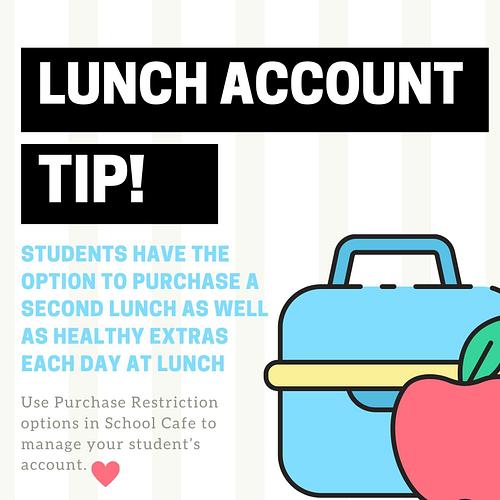
Within the lunch line, students have the option to purchase snacks in addition to their regular lunch, provided there is money available on their account. We want to make you aware that SchoolCafe allows you to set “Purchase Restrictions” on your child’s account if you prefer they not buy these extra items.
To set up restrictions:
1. Log in to your SchoolCafe account.
2. Select your student’s name.
3. Click on the gear icon labeled “Purchase Restrictions.”
4. Choose your preferences and be sure to save them.
Once saved, these restrictions will appear on the cashier’s computer, ensuring your child's account is used according to your wishes while they are in the lunch line.